PlaceKit guide
Your first template in five minutes.
Follow one warranty claim from template to finished letter, the way you would use PlaceKit every day. Watch the one-minute video, then download the example files and try each step in Word.
Example files
Everything in them is made up: Contoso, Fabrikam, the pumps. Try every step without touching your own documents.
- Warranty claim templateA claim letter with 12 markers like
{{Customer}}, in the text, a table and the footer. - The customer's emailPaste it into From text to see AI fill in the values.
- Values fileLoad it with Import to fill in the same claim without AI.
The files are in English, like PlaceKit itself.
Step by step
Install
Install PlaceKit and open its tab
Download the installer from the PlaceKit page and run it. Close Word if it is open, start it again, and click the PlaceKit tab on the ribbon.
 Open the full-size screenshot
Your template
Mark what changes
Open the example template, or your own document. Every detail that changes from one claim to the next is in double braces:
{{Customer}},{{Claim number}},{{Delivery date}}. A name used in several places, like{{Customer}}, is one placeholder.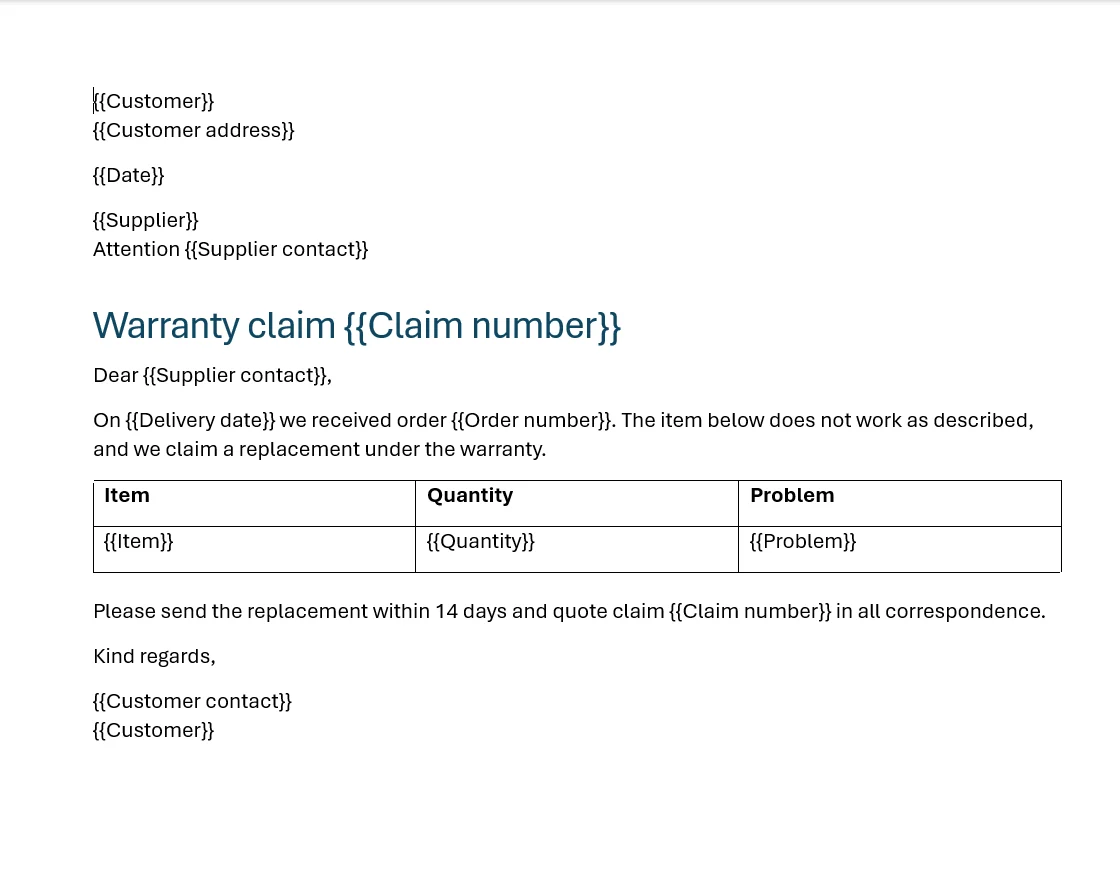 Open the full-size screenshot
Create
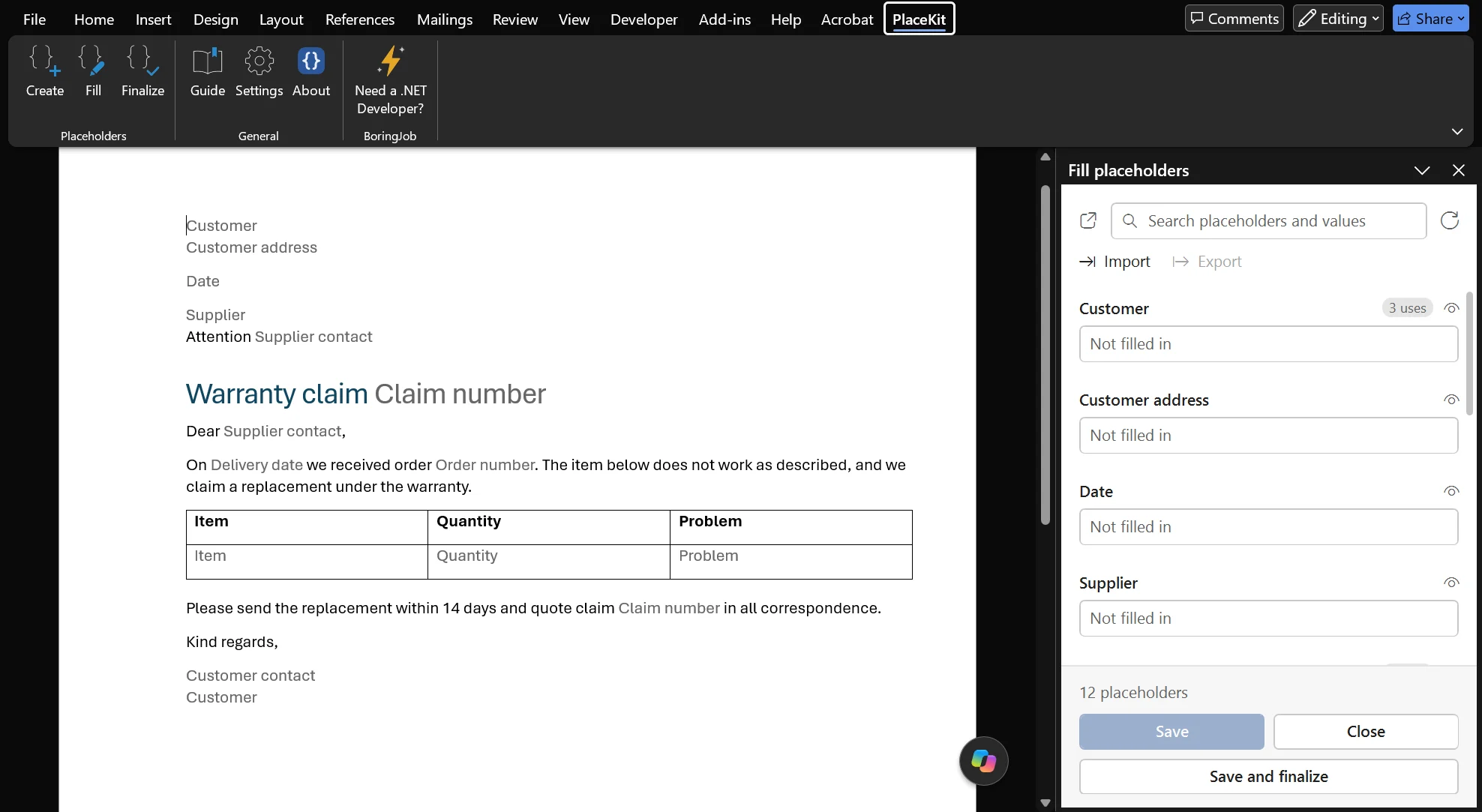
Turn the markers into fields
Click Create. Each marker becomes a Word field with its name, and the editor opens beside the document with every placeholder listed once. Save the document now: this is your template.
 Open the full-size screenshot
From text
Let AI read the email
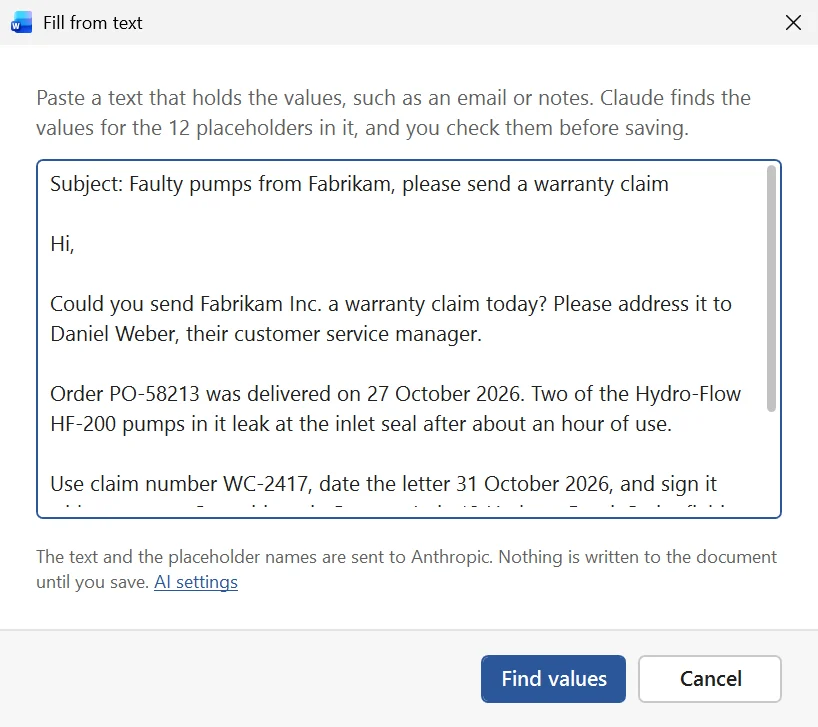
Click From text in the editor and paste the example email. Claude or ChatGPT finds the value for each placeholder. Only the pasted text and the placeholder names are sent, with your own API key.
 Open the full-size screenshot
Fill
Check the values
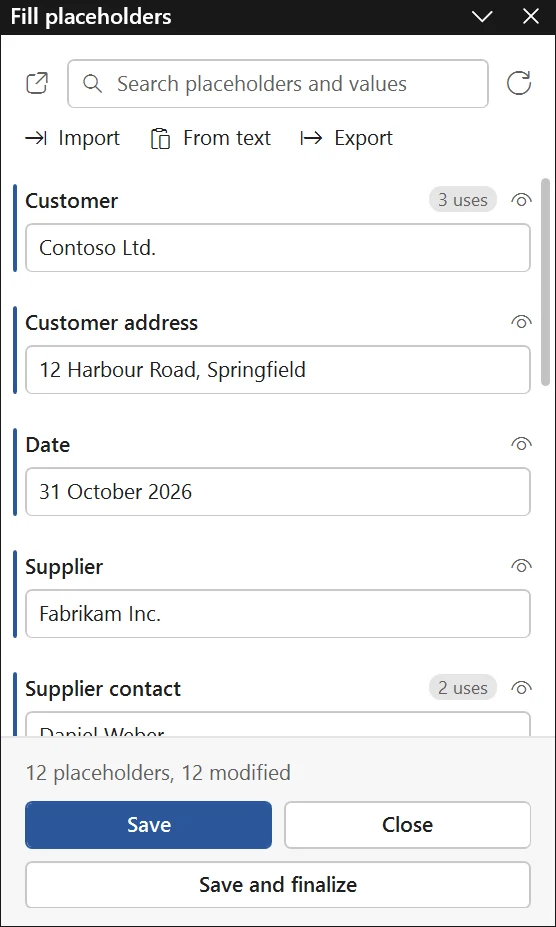
The values appear in the editor, marked as changed, but they aren't in the document yet. Correct anything you like, or type the values yourself without AI. Then click Save.
 Open the full-size screenshot
Save
Every value, everywhere
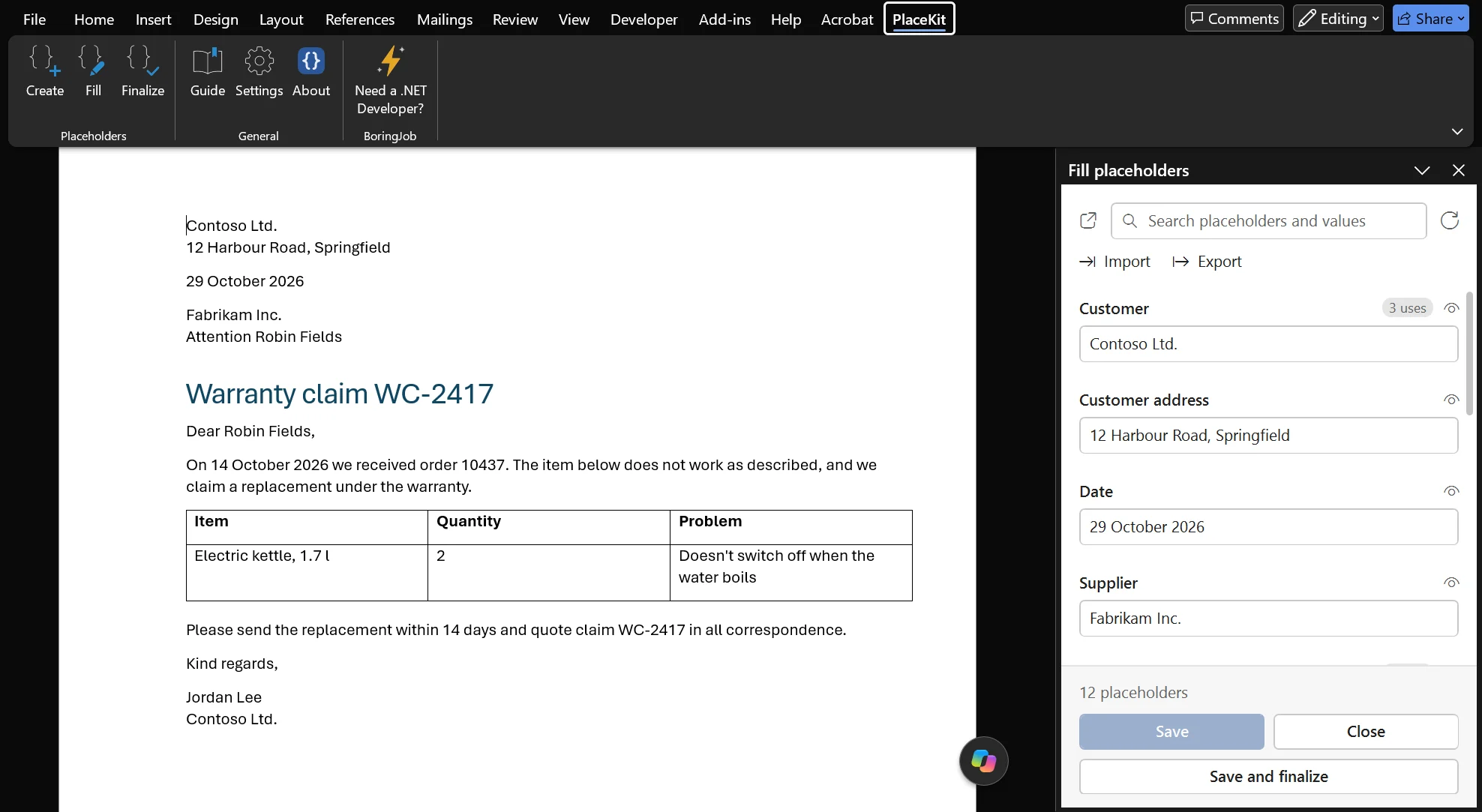
Save writes each value into every place it is used: the address, the heading, the table and the footer. Customer appears three times in this claim, and you typed it once, or not at all.
 Open the full-size screenshot
Finalize
Finish with plain text
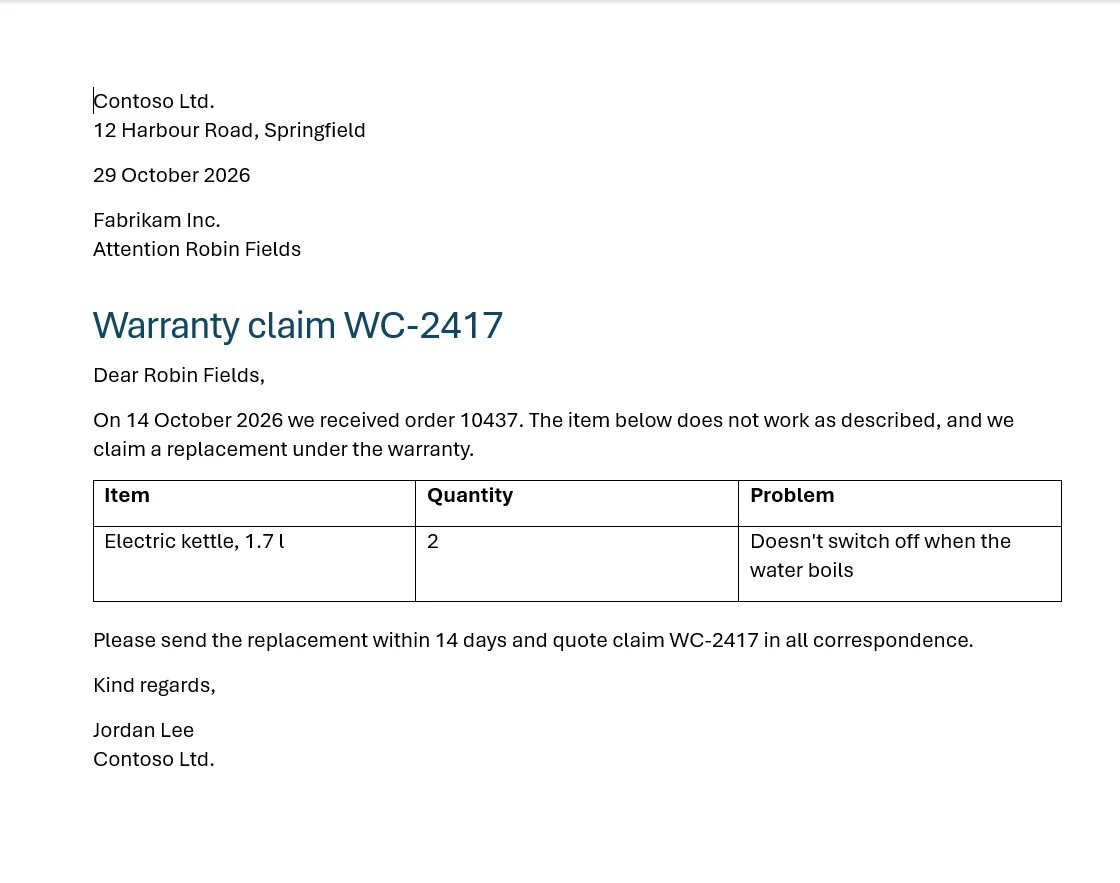
Click Finalize. The fields turn into ordinary text, so the file you send is a normal Word document. Keep your template for the next claim.
 Open the full-size screenshot
Detect
Or start from a finished document
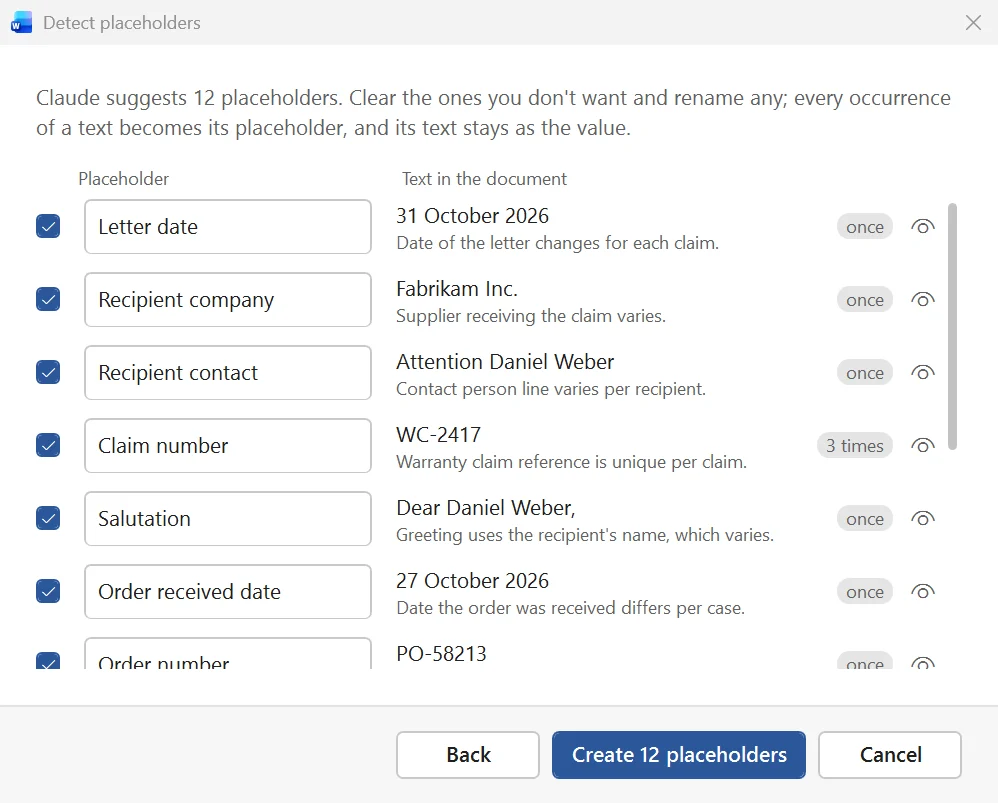
Already have last month's claim? Open it and click Detect. Claude or ChatGPT suggests the parts that change, each with its reason and how often it appears. Clear what you don't want, rename the rest, and click Create.
 Open the full-size screenshot
Detect
A template from an old letter
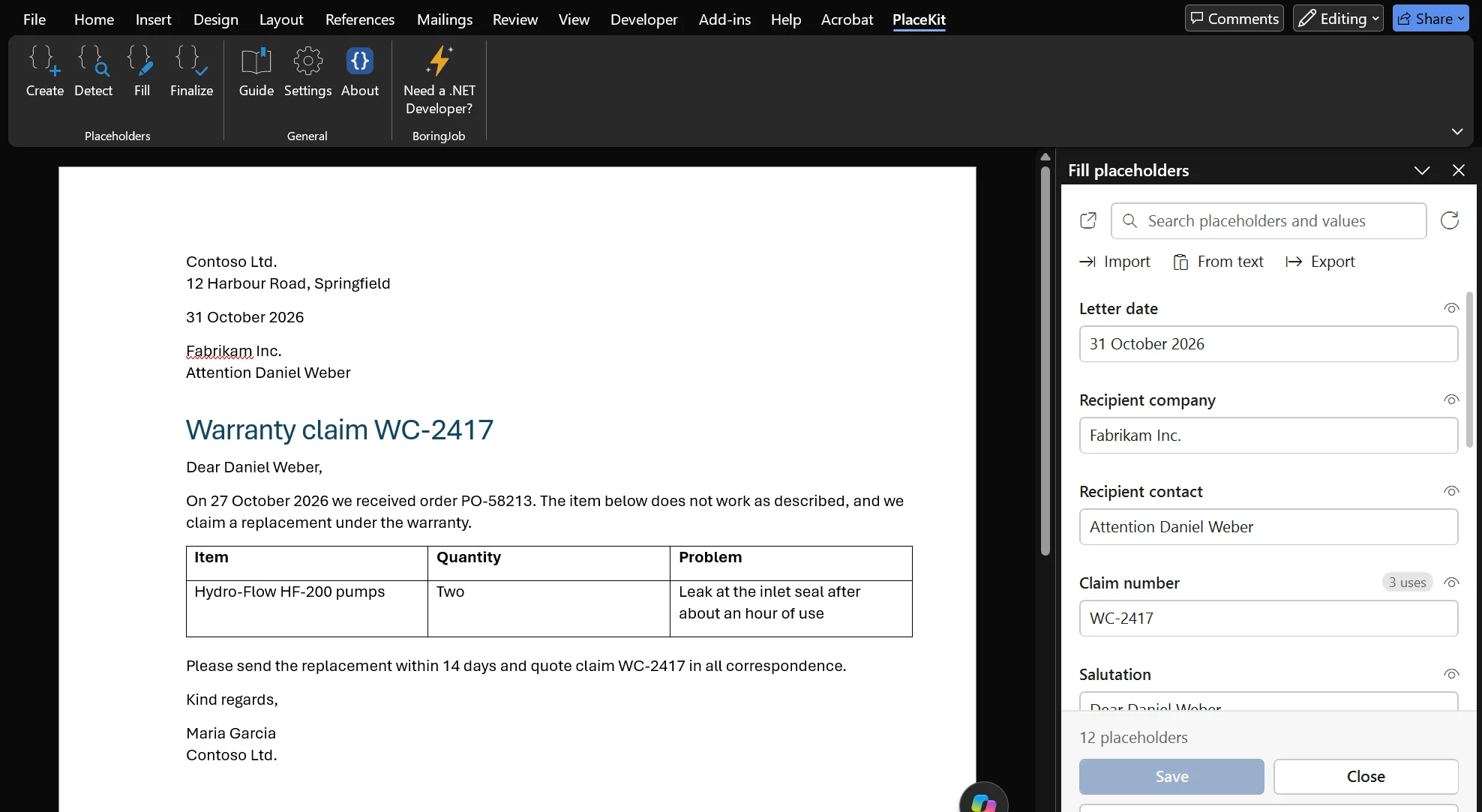
Each suggestion becomes a placeholder everywhere its text appears, and the text stays as its value. Save the document as your template, and fill it in for the next case.
 Open the full-size screenshot
Good to know
Import and Export
Export saves the values to a file, and Import loads them into another document. Try it with the example values file. Nothing changes in the document until you click Save.
One Ctrl+Z per step
Create, Save and Finalize each undo in one step. Long steps show their progress and can be cancelled.
Empty placeholders
If a placeholder is still empty when you finalize, PlaceKit asks whether to turn it back into a marker or delete it. Deleting also removes the extra space around it.
Your own markers
Prefer
[[name]]or<<name>>? Change the markers in Settings › General.Updates
When Word starts, PlaceKit asks boringjob.work for the latest version number. When there is a new version, an Update button appears on the tab. Settings › Updates turns the check off.
Setting up AI
Detect and From text need your own API key. In Settings › AI, choose Claude by Anthropic or ChatGPT by OpenAI, paste the key and click Test connection, which checks it for free. The key is saved encrypted for your Windows account.
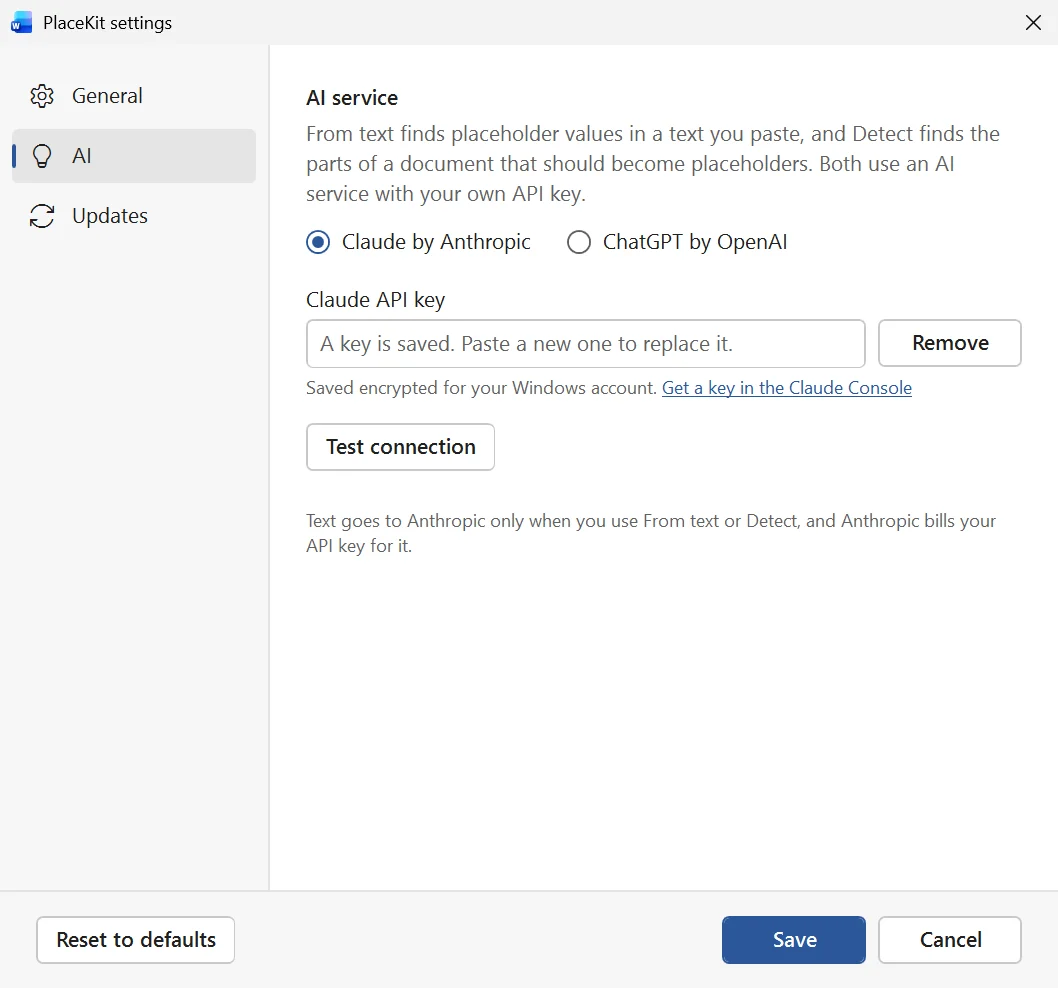 Open the full-size screenshot
Ready for your own documents?
Download PlaceKit, or tell me about the documents your team still fills in by hand.
Back to PlaceKit